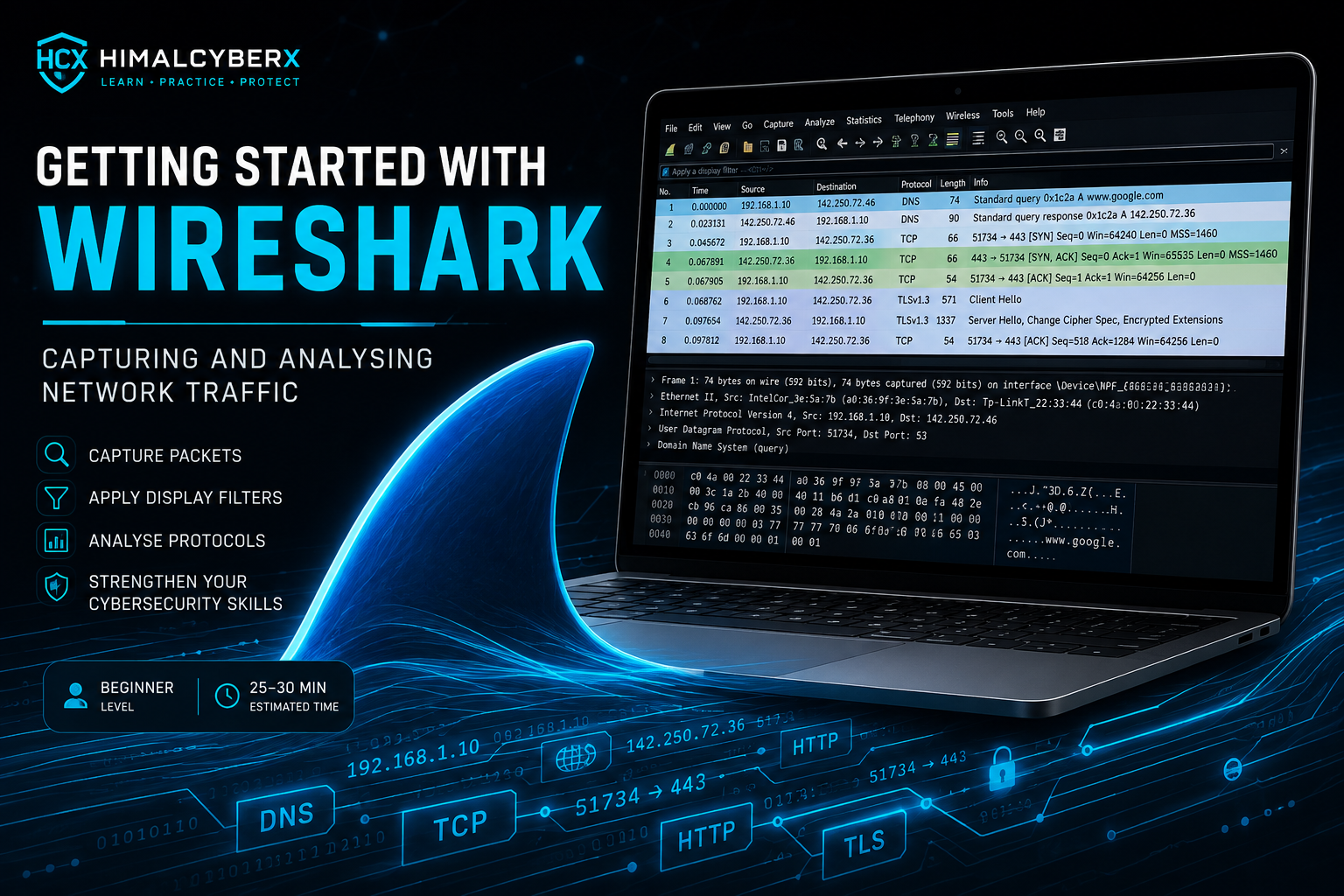
Getting Started with Wireshark: Capturing and Analysing Network Traffic
Learn how to use Wireshark to capture, filter and analyse network traffic. This beginner-friendly tutorial introduces packet analysis and shows how Wireshark can help identify common network activity.
Learning progress
Track this tutorial against your account.
Introduction
Wireshark is a network protocol analyser used by cybersecurity professionals, network administrators and students to inspect network traffic.
In this tutorial, you will learn the basic Wireshark interface, capture network packets and use simple display filters to understand what is happening on a network.
Only capture network traffic on systems and networks that you own or have permission to analyse.
Requirements
• Windows, macOS or Linux computer • Wireshark installed • Active internet connection • Basic understanding of IP addresses and network protocols • Administrator privileges may be required for packet capture
Step-by-Step Instructions
Step 1 – Open Wireshark
Launch Wireshark and review the available network interfaces. You may see Ethernet, Wi-Fi and other interfaces.
Step 2 – Select the Network Interface
Choose the interface currently being used for your internet connection. The activity graph can help identify an active interface.
Step 3 – Start Packet Capture
Double-click the active interface to begin capturing packets. Wireshark will display network traffic in real time.
Step 4 – Generate Network Traffic
Open your web browser and visit a normal website. Return to Wireshark and observe the packets being captured.
Step 5 – Stop the Capture
Click the red Stop button when you have collected enough traffic.
Step 6 – Filter DNS Traffic
Enter the following into the display filter:
dns
Press Enter. Wireshark will display DNS-related packets from the capture.
Step 7 – Filter TCP Traffic
Replace the filter with:
tcp
You will now see TCP packets only.
Step 8 – Inspect a Packet
Select a packet and expand the protocol information in the packet details panel. Review information such as source address, destination address, ports and protocol fields.
Step 9 – Save the Capture
Use File → Save As to save the packet capture as a .pcapng file if you want to analyse it later.
Key Takeaways
• Wireshark captures and analyses network packets. • Display filters help isolate specific protocols and traffic. • DNS traffic can provide information about domain name requests. • TCP packet information can help understand network connections. • Packet analysis is an important skill for network troubleshooting and cybersecurity investigations.
Security Notes
Packet captures may contain sensitive information about network communications.
Only capture traffic from networks and systems you own or are explicitly authorised to analyse.
Do not collect, inspect or distribute another person's private network traffic without appropriate permission.